- LoRA
- LoRA dataset
- Dataset quality
- Captions
- Kohya_ss
- AI-Toolkit
- Flux
- SDXL
Check Your LoRA Dataset Before Training
A pre-training LoRA dataset checklist: delete blurry, compressed, watermarked and duplicate images, verify variety, and review captions before you train.
What Should You Check Before Training a LoRA?
A LoRA learns whatever is consistent across your images, including mistakes. If six of twenty photos carry the same watermark, the watermark becomes part of the concept. If half the set is soft or over-sharpened, the LoRA learns that texture. A quick quality pass before you press train is the cheapest fix in the whole workflow, because every bad file you remove now is one less reason to retrain later.
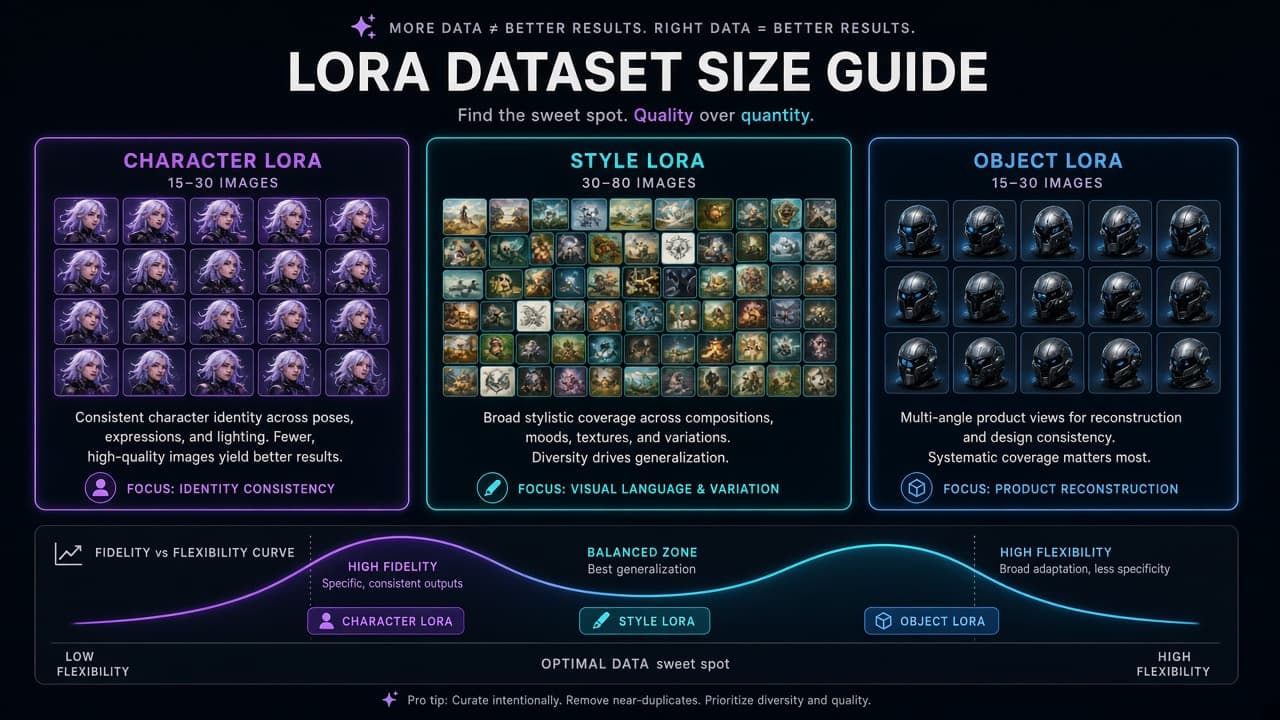
The checklist on this page covers three passes: an image pass (delete what is technically broken), a set pass (check variety and duplicates across the whole folder), and a caption pass (read what the trainer will actually see). It is meant for a set you already have. If you still need to decide what to shoot, start with our worked 20-image character shot list, and if you are unsure how big the set should be, see how many images you need to train a LoRA.
None of this needs special software. A file browser with large thumbnails, a text editor for captions and, for bigger folders, a free duplicate finder are enough.
Which Images Should You Delete From a LoRA Dataset?
Open every image at 100 percent zoom, not as a thumbnail. Most problems that ruin a LoRA, such as JPEG blocking, motion blur and faint watermarks, are invisible at thumbnail size. Delete first and replace later; a smaller clean set usually trains better than a larger dirty one.
- Blurry or out-of-focus frames, especially when the face, product label or key texture is soft.
- Heavy JPEG compression, visible blocking, banding or color noise from screenshots and social media re-uploads.
- Watermarks, logos, signatures, UI overlays, subtitles or timestamps that you cannot crop out cleanly.
- Images where a second person, character or product shares the frame and could blend into the concept.
- Extreme filters, heavy color grading or beauty smoothing that you do not want baked into every output.
- Tiny source images that only reach training resolution after aggressive upscaling.
- Crops that cut through the subject in awkward places, such as half a face or the edge of a logo.
Crop before you delete
How Do You Spot Near-Duplicates and Over-Upscaled Frames?
Near-duplicates are frames that differ only slightly: burst shots, consecutive video frames, or the same image saved twice at different sizes. Each copy gives that one pose and background extra weight, which pushes the LoRA toward reproducing it. Keep the best frame of each burst and delete the rest. For folders larger than a few dozen images, a perceptual hashing tool such as the open source imagededup library can flag likely duplicates automatically so you only review the candidates.
Over-upscaled frames are harder to see. AI upscalers often produce waxy, plastic-looking skin, invented pores, over-sharpened hair and repeated texture patterns. A LoRA trained on many of them reproduces that look on every generation. Compare suspicious images against a known clean photo at 100 percent zoom; if the skin or fabric looks painted, replace the image or downscale it gently instead of using the upscaled version.
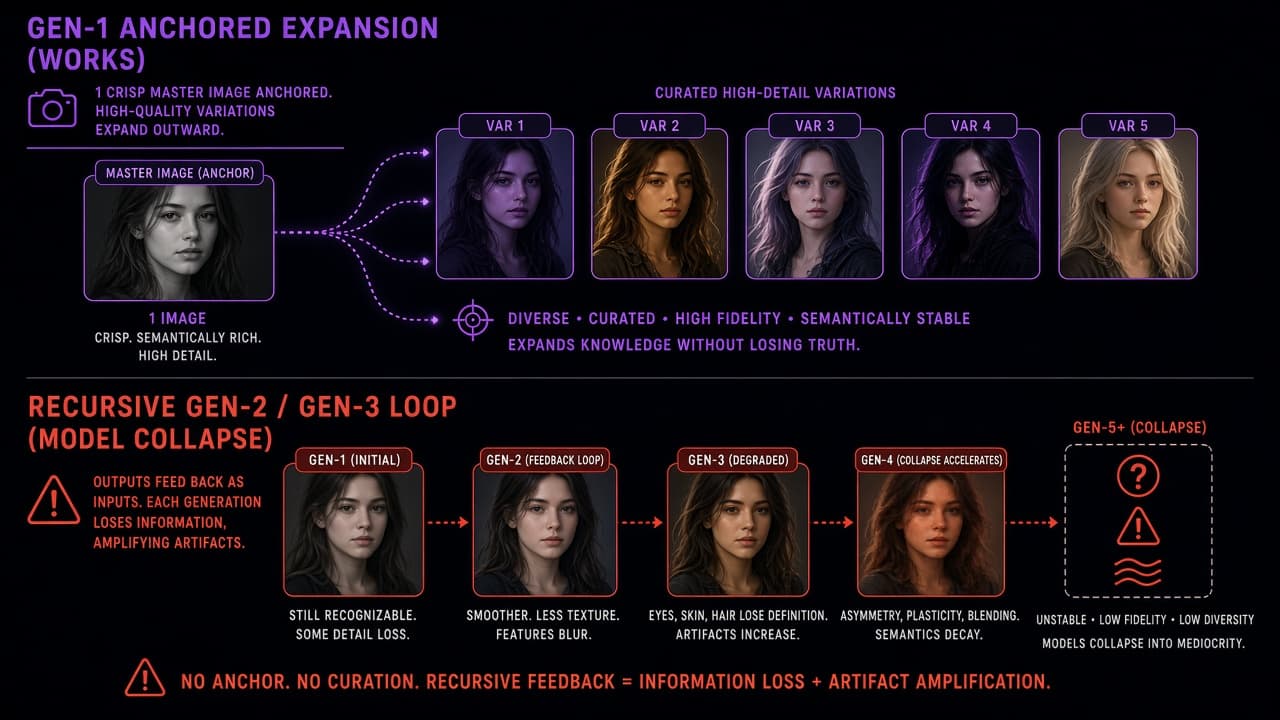
The same applies to sets you expanded from a single reference with an image generator. Those variations are useful, but check them for repeated faces, identical lighting and the collapse patterns described in our guide to training a LoRA on AI-generated images. If you started from one photo, the one-image dataset workflow explains how to keep those variations diverse.
How Do You Check Captions Without Retraining?
Captions decide which parts of the image the LoRA treats as the concept and which parts it treats as changeable. Read every caption file next to its image once before training. Auto-captioners are good but they still hallucinate objects, miss accessories and describe the subject differently from file to file.
Look for three things. First, consistency: the same subject should use the same trigger and class words in every file. Second, accuracy: remove objects that are not in the image and add obvious ones that are missing, such as glasses or a background color. Third, coverage: describe things you want to stay changeable, like clothing or background, and avoid describing the fixed features you want the LoRA to absorb. Our LoRA captioning guide covers the full rules.
Finally, confirm that every image has a matching caption file with the same base name and the extension your trainer expects, and that no caption is empty. Kohya_ss and Ostris AI-Toolkit both read captions from sidecar text files, so one missing or misnamed file is enough to train an image with no caption at all.
Pass or Fail: QA Checklist for Character, Product and Style Sets
The rules shift with the LoRA type. A character LoRA must lock identity, a product LoRA must lock shape and branding, and a style LoRA must lock the look while the subjects change. Use the table as a final pass before you upload the folder or start the trainer.
| Check | Character LoRA | Product LoRA | Style LoRA |
|---|---|---|---|
| What must stay constant | Face, hair, body proportions | Shape, logo, materials, colorway | Line work, palette, rendering style |
| What must vary | Pose, expression, outfit, light, background | Angle, background, lighting, scale | Subjects, scenes, compositions |
| Automatic fail | A second face in frame, heavy beauty filter | Wrong colorway or competitor product | Mixed artists or mixed eras of one artist |
| Duplicate rule | One frame per burst or video moment | One shot per angle and background | No repeated subject across many images |
| Caption focus | Trigger plus changeable details | Trigger plus scene and angle | Describe content, not the style itself |
| Common hidden problem | Over-upscaled plastic skin | Reflections showing the photographer | Watermarks and signatures in corners |
- 01
Image pass
Open every file at full zoom and delete or crop anything blurry, compressed, watermarked, filtered or containing a second subject. - 02
Set pass
Sort by similarity or run a duplicate finder, keep one frame per burst, and confirm pose, light and background actually vary. - 03
Caption pass
Read each caption next to its image, fix hallucinated or missing details, and keep the trigger and class words identical across files. - 04
File pass
Confirm every image has a non-empty caption with the same base name and that no stray files sit in the training folder.
How Is This Different From Diagnosing Overfitting?
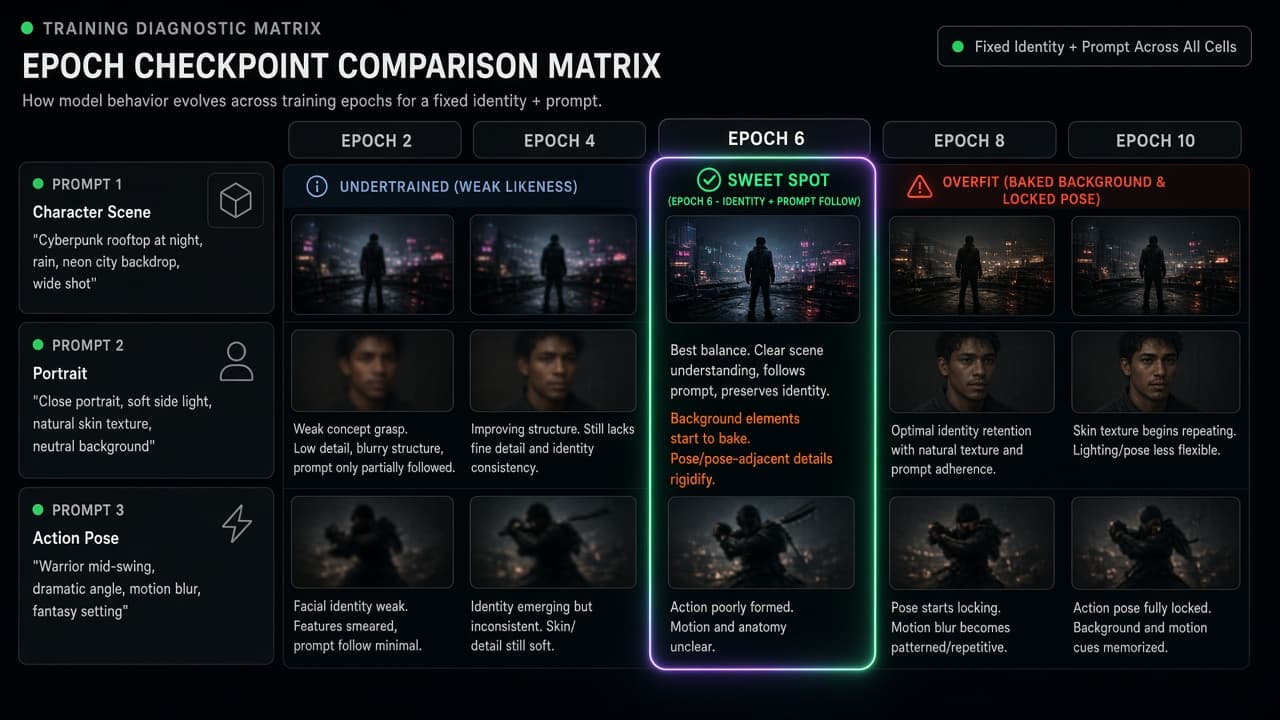
This checklist runs before training. Overfitting and undertraining are diagnosed after training, from sample images and loss behavior. The two are linked: duplicates, a single repeated background or one dominant pose make overfitting show up earlier and harder, because the LoRA has fewer distinct examples to generalize from. If your samples already look burned or ignore the prompt, read how to tell overfitting from undertraining before changing settings.
Product sets have their own traps, such as reflections and inconsistent label text; the product LoRA from one photo guide shows how to plan those angles. When your folder passes all four checks, you can generate any missing variations and export a trainer-ready set from the LoRA Dataset dashboard.
Frequently asked questions
Is it better to have fewer clean images or more mixed-quality images for a LoRA?
Fewer clean images is usually better. Every image teaches the LoRA something, so blur, compression or watermarks in part of the set get learned along with the subject. Remove the bad files first, then add new clean images only if the set lacks variety.
How do I find duplicate images in a LoRA dataset?
For small sets, sort thumbnails and compare similar frames by eye. For larger folders, a perceptual hashing tool such as imagededup flags likely duplicates and near-duplicates so you only review the candidates. Keep the best frame from each burst or video moment.
Should I upscale small images before training a LoRA?
Only gently, and check the result at full zoom. Aggressive AI upscaling often adds plastic skin and invented texture that the LoRA will copy. If a source image is far below your training resolution, replacing it is usually safer than upscaling it.
Do I need to check auto-generated captions?
Yes. Read each caption once next to its image. Auto-captioners can invent objects, miss accessories and describe the same subject inconsistently, and those errors change what the LoRA treats as fixed or changeable.